
Blacksmith Master Controls and Settings Explained
Blacksmith Master controls for 1.0: camera, manual crafting, accessibility options including mouse-only play, and the settings to change first.
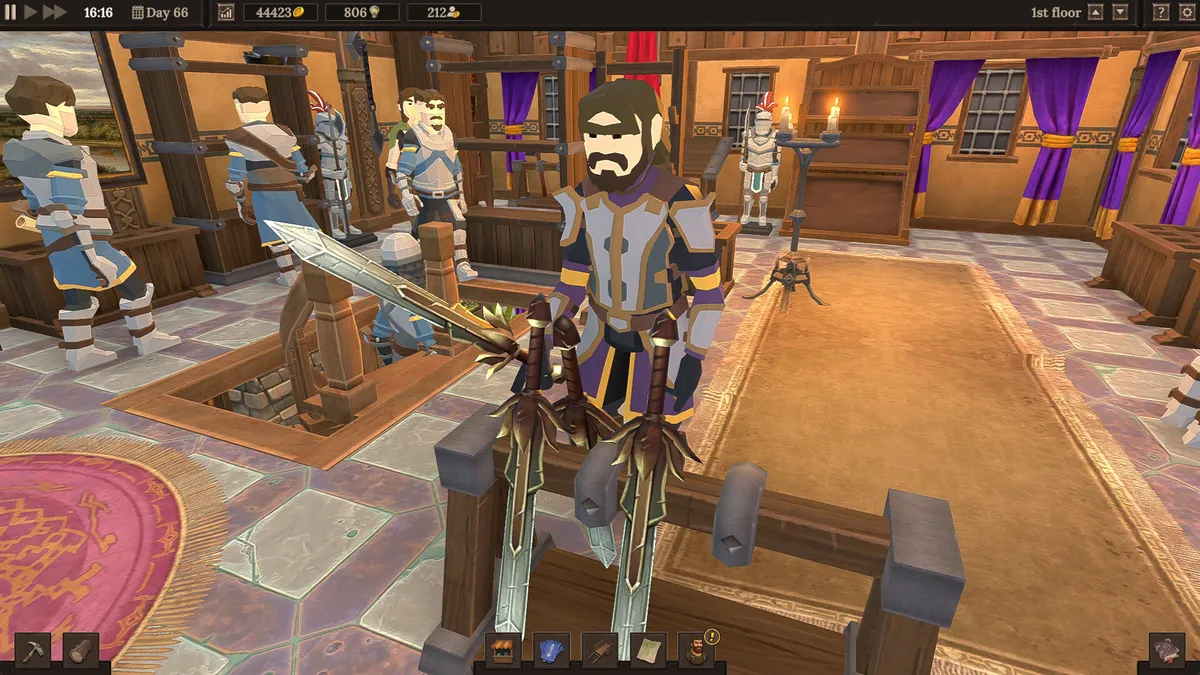
What control options does Blacksmith Master have?
Blacksmith Master is built around an isometric management view with a full camera: pan, zoom, and rotate to read your shop floor. Its standout option is manual control — you can take direct, third-person control of a worker to heat, hammer, and finish an item yourself, which the tutorial uses to teach the crafting chain. Beyond that, version 1.0 ships an unusually complete accessibility and comfort suite for a management sim, plus a reworked staff menu that most of your in-game “controls” time will actually be spent in.
Camera and manual crafting
The default view is your command perspective; the game is fully playable without ever leaving it. Manual mode is for taste and teaching: walk a worker to the furnace, heat the ingot, work the anvil. It is satisfying and slower than automation — treat it as a hands-on tutorial for what your automated workers are doing, then let the machines run. Direct control also helps with one-off precision tasks, like finishing a single complex component without retemplating assignments (see multi-part crafting).
Settings worth changing first
From the options menu, in order of impact:
- Text size (adjustable) — the day summary and staff menus are dense; scale text until wage numbers are comfortable to scan.
- Camera comfort — options to soften camera movement if the zoom-and-pan ever feels swimmy.
- Custom volume sliders — the forge ambience is charming for an hour and loud forever; the anvil ring deserves its own level.
- Adjustable difficulty — the game offers difficulty settings; beginners should start standard rather than raising it, as the economy itself is the real challenge (first-week guide).
- Mouse-only option — a full control scheme requiring nothing but the mouse exists for accessibility; if hotkeys ever strain your hands, this is a complete alternative, not a reduced one.
Other listed conveniences: save-anytime, Steam Cloud, and adjustable difficulty presets.
The staff menu: your real control panel
Version 1.0 overhauled the staff menu into list view with multi-edit — traits, salaries, and duty settings visible and editable in bulk. This is where the game is actually controlled at scale: rebalance a dozen workers in one pass, spot a wage leak in one column, and re-template your worker builds without twelve dialogs. If you played Early Access, relearn this menu first; it changes everything about mid- and late-game management.
Platform and save notes
The game runs on Windows, macOS, and SteamOS/Linux with interface and subtitle support across 17 languages. Saves are local JSON files with Steam Cloud support — backup and migration details are on our save file page.
One-paragraph setup recommendation
Standard difficulty, text size up one notch, volumes mixed to taste, camera comfort on the gentler setting if you feel any motion discomfort — then twenty minutes in the staff menu learning list view and multi-edit. That half hour of setup pays back across the entire campaign.
Related Articles
guides
Blacksmith Master Beginner Guide: Your First 7 Days, Day by Day
A day-by-day Blacksmith Master beginner guide for version 1.0: what to build, who to hire, which orders to take, and the mistakes that stall a new forge.
guides
Blacksmith Master Merchant Offers Explained: Slots, Timers, and Math
How merchant offers work in Blacksmith Master: slot limits, the 200 Gold refresh cost, timed offer expectations, and the elite worker every 20 completions.
systems
Blacksmith Master Gems: How to Get Topaz, Emerald, Ruby, and Diamond
Every way to get gems in Blacksmith Master 1.0: the Gem Mine trade route shipments, Master Miner finds, and which jewelry each gem unlocks.
Was this helpful?
Thanks for the feedback!